


01
Create your vault
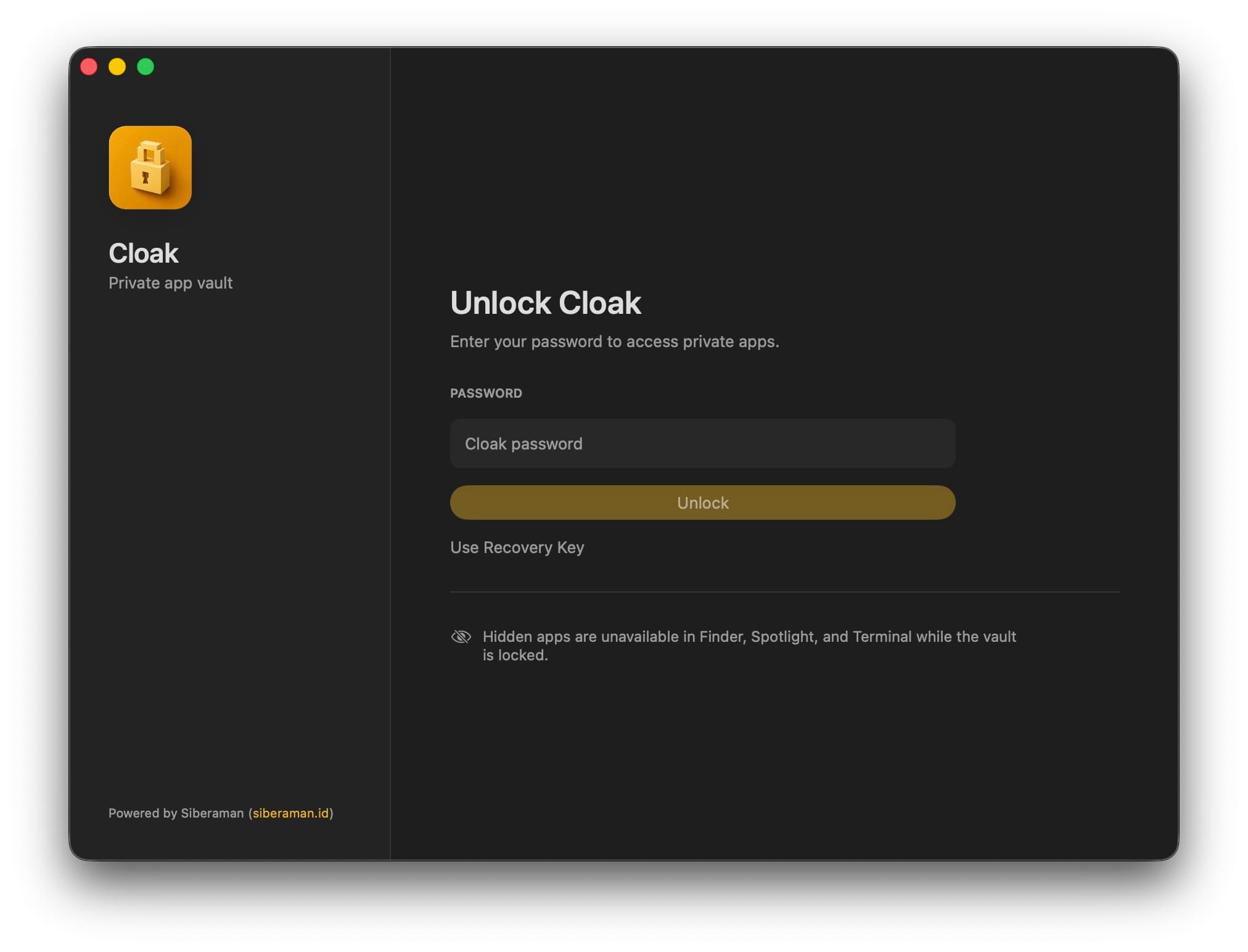
Choose a Cloak password and save the recovery key shown during setup somewhere outside the vault.
Cybersecurity · Science · Research

Cloak
Protect selected apps in a local encrypted vault on Windows or macOS. Open them only when needed, then lock the vault again. Private system care tools are included.
Windows 10/11 x64 · macOS 14+ · Version 1.0
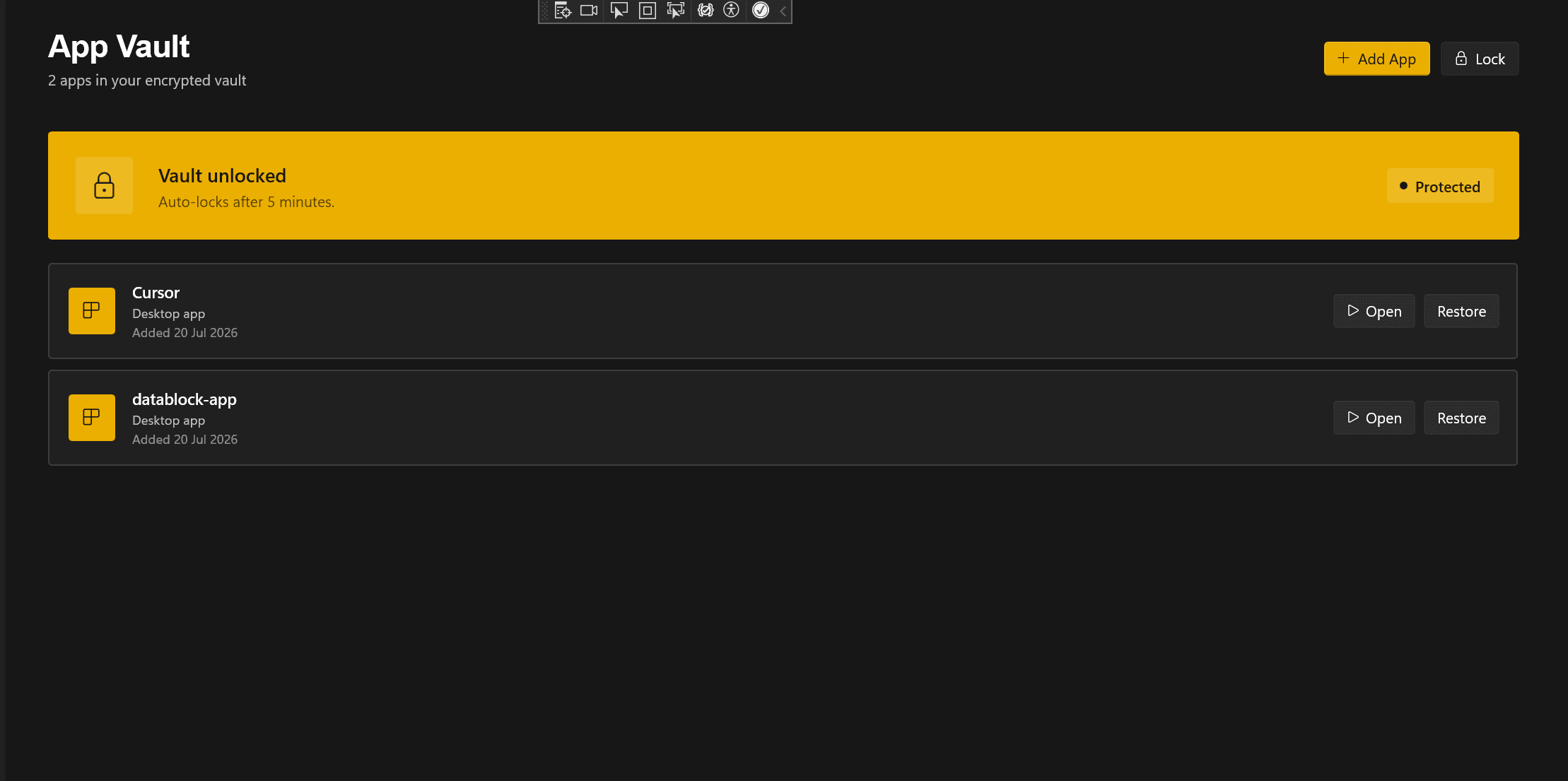
Windows · App Vault
01 / 03 · Windows
Private app vault
Local-first protection
System care included
How it works
01
Choose a Cloak password and save the recovery key shown during setup somewhere outside the vault.
02
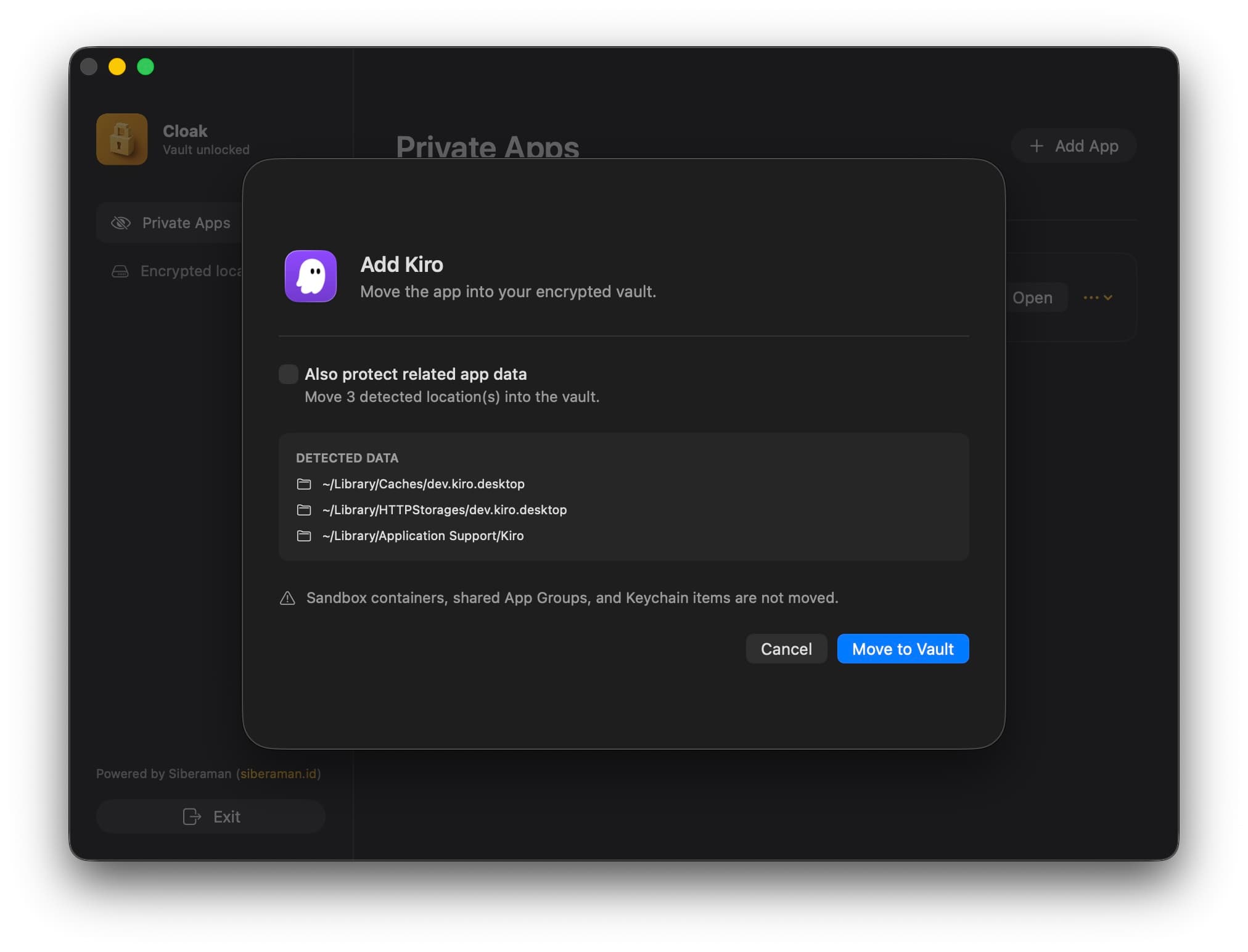
Choose an installed application and review what Cloak will move into encrypted local storage.
03
Launch private apps from Cloak. When you finish, close them and lock the vault so its files are encrypted again.
System Care, included
Review app caches, logs, Trash, and optional developer files by category. Search, expand, and select every item before anything is removed.
Measure any folder, find its largest contents, filter files and folders, then explore deeper or reveal a file in Explorer or Finder.
See local CPU, memory, disk, network, battery, and process activity without sending telemetry to a remote service.
Keep a compact local view of system health, processes, storage, and vault status available inside Cloak.
Inside Cloak
Cloak 1.0